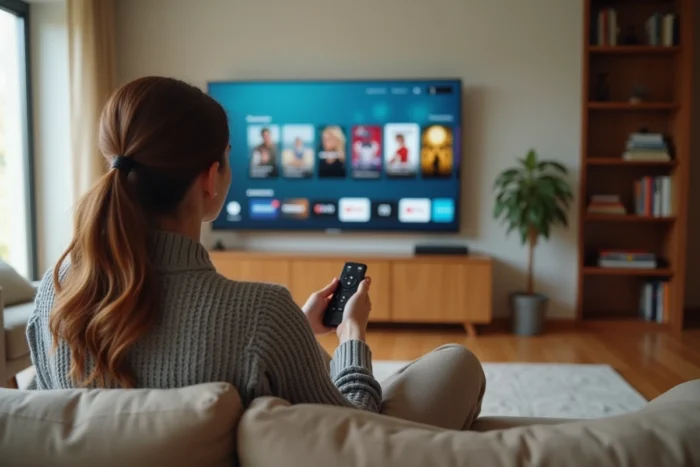
We connect the Samsung TV, settle into the couch, and then: impossible to find the desired streaming app, or the Wi-Fi refuses to cooperate. This scenario is encountered with every new installation. Watching a movie in streaming on a Samsung TV should take less than two minutes, provided you know the few settings that really cause problems.
Wi-Fi Connection on Samsung TV: The Most Common Blockage
Before even thinking about the apps, it’s the network that gets stuck. On Samsung televisions, the Wi-Fi connection is set up in Settings > General > Network. The menu varies slightly depending on the model year, but the logic remains the same.
The classic trap: the TV connects to the router’s 5 GHz network while it is too far from the access point, or conversely, it stays on the 2.4 GHz network congested by other devices. Samsung recommends checking that the television and the router are on the same network, which seems obvious but poses a real problem when the router broadcasts two distinct SSIDs.
If the connection fails despite a correct password, you can restart the TV and the router simultaneously, then try again. On some models, resetting the network settings in the dedicated menu is enough to unblock the situation. For a step-by-step method to watch streaming movies on Samsung TV without a hitch, a stable Wi-Fi network remains the non-negotiable prerequisite.
Streaming Apps on Samsung Smart TV: Install and Organize
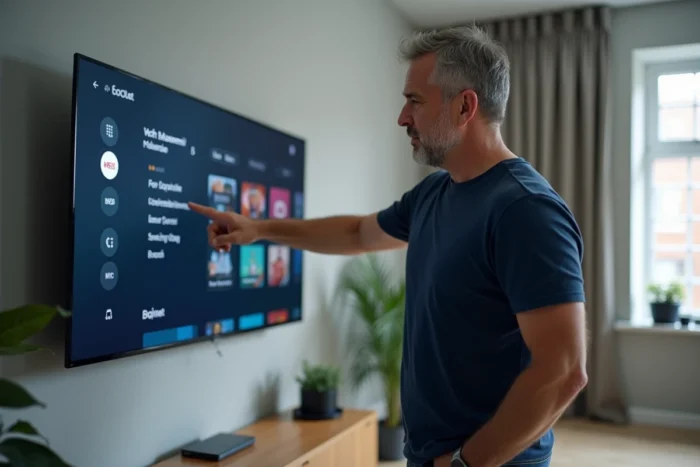
Once the network is in place, everything goes through the Smart Hub, the central interface of Samsung televisions. You can access it with the Home button on the remote. Popular streaming apps (Netflix, Disney+, Prime Video, Apple TV+) are usually pre-installed or available in the Samsung Apps Store.
Install an App Missing from the Smart Hub
Open the Smart Hub, then the Apps section. The search bar allows you to find any app available for the TV. After installation, the app appears on the home screen.
One point to know: not all Android apps are compatible with Tizen, the operating system of Samsung TVs. If an app does not appear in the store, it means it is not available for this platform. Feedback on this point varies depending on models and regions.
Manage Multiple Accounts and Profiles
Each app manages its own user profiles. You can also link a Samsung account to the TV to retrieve your preferences from one TV to another. A practical tip: pin the most used apps to the top of the Smart Hub by holding down the select button and choosing “Add to Home.”
Samsung TV Plus: Free Streaming Already Integrated
Samsung TV Plus is a free ad-supported streaming service, integrated into all Samsung TVs sold since 2016. It also works on Galaxy smartphones, tablets, and Smart Monitors. No account to create, no subscription to sign up for: just an internet connection is enough.
The service offers thematic channels (movies, series, news, sports) accessible directly from the Smart Hub. For occasional use or when you don’t want to multiply subscriptions, it’s often an overlooked option that deserves to be tested before pulling out the credit card.
Stream from a Galaxy Smartphone with Smart View
Sometimes you have the movie on your phone, via an app that doesn’t exist on the TV, or simply a local file. The Smart View feature allows you to project the screen of a Samsung Galaxy smartphone directly onto the TV.
Here are the conditions for the connection to work:
- The smartphone and the TV must be connected to the same Wi-Fi network
- On the TV, enable Smart View permission in Settings > General > External Device Manager > Device Connection Manager
- On the smartphone, pull down the notification bar and tap the Smart View icon, then select the TV from the list
Once connected, everything displayed on the phone appears on the big screen. The latency is minimal for video but can be noticeable for games. For movies stored in the Gallery or played via a mobile app, Smart View turns the TV into a secondary screen in seconds.
Video Formats and Playing Local Files on Samsung TV
A common scenario: a movie legally downloaded onto a USB stick or external hard drive that you want to play directly on the TV. Samsung televisions come with a media player capable of reading most common formats (MP4, MKV, AVI). You plug in the USB drive, then access the content via the Source menu or directly from the Smart Hub.
The regular sticking point is the codec. An MKV file with an unsupported audio codec (some DTS formats depending on the model) will display the image without sound. In this case, two solutions:
- Convert the audio file to AAC or AC3 before copying it to the USB stick
- Use an external media player (like Chromecast or Android box) that natively supports these codecs
- Use DLNA from a computer or NAS connected to the local network
DLNA remains the most flexible method for those who have a video library on a home server. The Samsung TV automatically detects the DLNA servers present on the network.
Watching a movie in streaming or locally on a Samsung TV does not require advanced technical skills. The real time-saving comes from three things: a reliable Wi-Fi network, a well-organized Smart Hub, and knowledge of the TV’s codec compatibility limits. Once these basics are established, you can navigate between apps, Samsung TV Plus, and Smart View without friction.